
Enable Data Exploration
Enabling file exploration marks your dataset as explorable, allowing users to browse and analyze your files through Explore the Data in a notebook environment.
What Exploration Includes
- Interactive file browsing — users can see and preview dataset files in a Jupyter Notebook environment
- Pre-packaged notebooks — you can provide example analyses (visualization, subsetting, statistical summaries) that users can run or modify
- Custom analysis tools — users can write their own code to explore and transform the data
- Multiple languages — choose between Python, R, or Julia for your analysis environment
Before you start:
- All dataset files must be uploaded to the MSD-LIVE data repository first
- Files must be in their original format (not zipped)
- File types must be readable in Jupyter Notebooks, such as
.csv,.netcdf,.txt, and similar formats - You must be the dataset author/owner
How to Enable File Exploration
- Navigate to your dataset's edit page
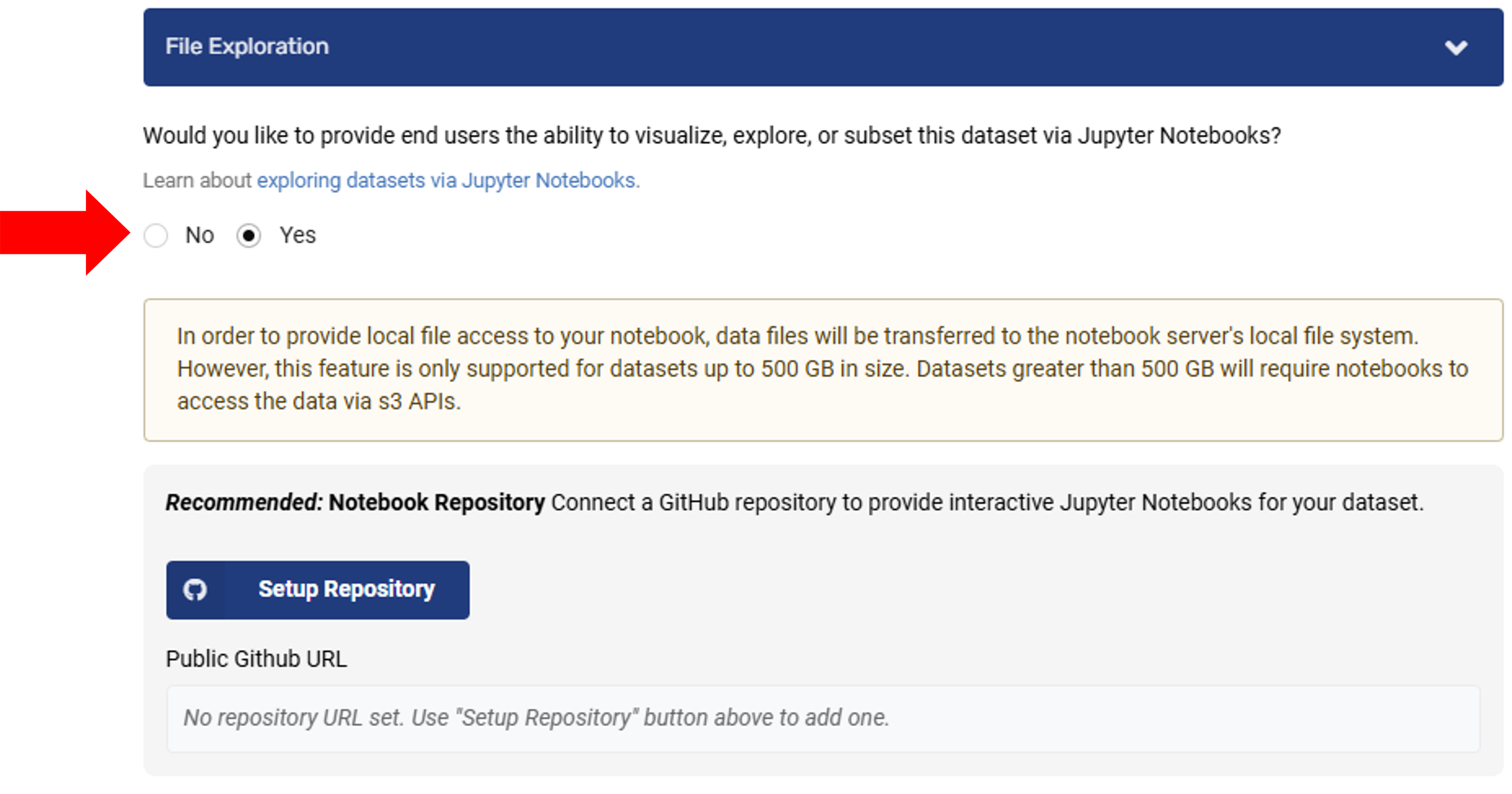
- Find the File Exploration section
- Select Yes to enable interactive file exploration for users
- (Optional) If you want to provide example notebooks, set up a linked GitHub repository — see Set Up a Notebook Repository
- Submit your dataset for review and publication through the standard MSD-LIVE workflow
Video Walkthrough
Watch this video for a quick overview of the full workflow: