
Using Dataset Notebooks
Dataset Notebooks in MSD-LIVE allow you to interactively explore, analyze, and subset data directly in the cloud using Jupyter Notebooks.
Some datasets include pre-built notebooks provided by dataset authors. These notebooks are ready to use and demonstrate recommended workflows such as visualization or analysis.
You can also create your own notebooks to run custom code and perform your own analysis.
Launching a Dataset Notebook
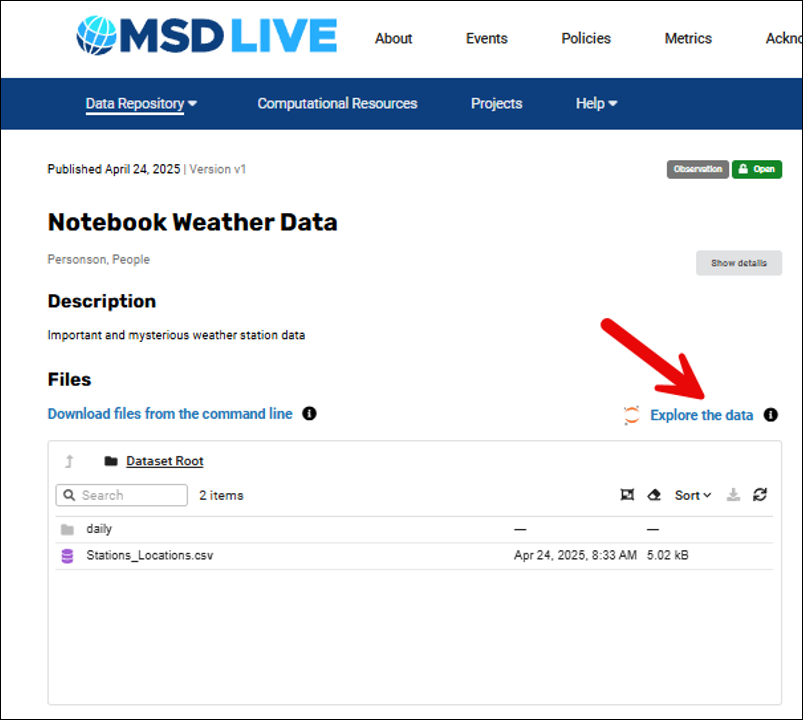
If a dataset supports notebooks, you will see an "Explore the data" link on the dataset page.
- Navigate to a dataset
- Click Explore the data
- Use your MSD-LIVE account to authenticate.
Note: You must have a Tier 3 membership in order to launch dataset notebooks. Check your profile page to see what Tier you are and to request an upgrade if necessary.
When launched:
- A Jupyter Notebook environment starts in the cloud
- Dataset files are automatically available in a mounted
/data/directory - If provided, the dataset author’s GitHub repository is cloned into the environment
Using Pre-Built Notebooks
If provided, notebooks will be available in the /notebooks/ directory.
- Open and run example notebooks
- Follow instructions included in README or notebook cells
- Learn recommended workflows for the dataset
If no notebooks are provided, you can create your own.
Session Limits
- Notebook sessions may have time limits (e.g., ~1 hour)
- Pay attention to the bottom-right of the status bar to see the remaining time for your session
